Printing Photos
-
Select the printer, and then click Photo.

-
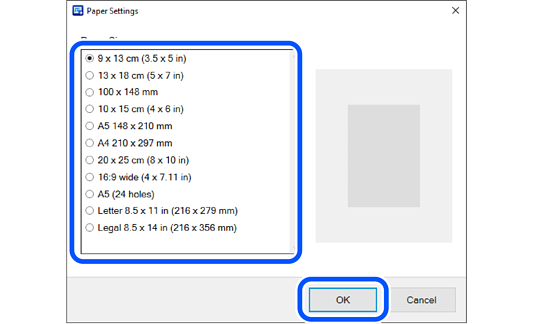
Select the paper size, and then click OK.
 Note:
Note:The paper orientation is set automatically according to the selected photo. If you want to change the orientation of the photo, make settings again after selecting the photo. See the following for more details.
-
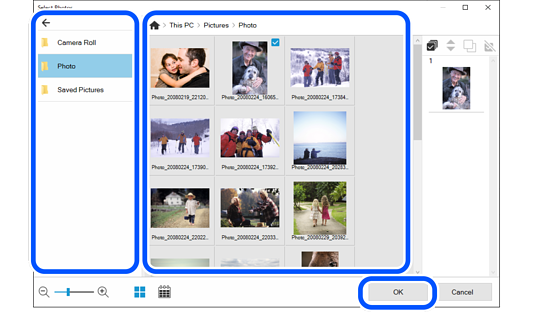
Select photos, and then click OK.
You can check the selected photos in the photo list on the right.
 Note:
Note:-
Click
 to rearrange the photos displayed in order of the shooting date.
To return to the list view, click
 .
.
-
Use the following buttons to edit the contents of the photo list.
 : Select all the photos in the photo list.
 : Change the order of the photos selected in the photo list.
 : Copy the photos selected in the photo list. You can place the same photo in multiple frames.
 : Deselect the photos selected in the photo list.
-
Click OK to reset the editing page to match the selected photo. If you reselect a photo after it has been edited, the page may be deleted.
-
-
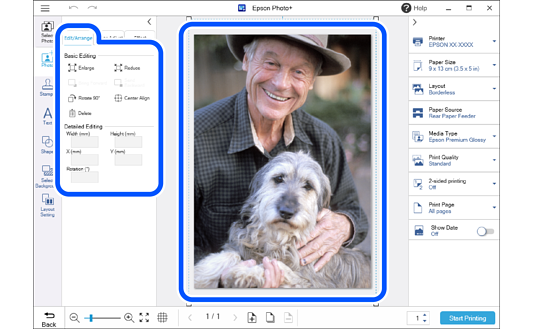
Click the photo to adjust its position, size, and so on.
You can adjust the position by dragging the photo.
Select a photo and then click the Edit/Arrange tab to enlarge, reduce, rotate, and so on.
-
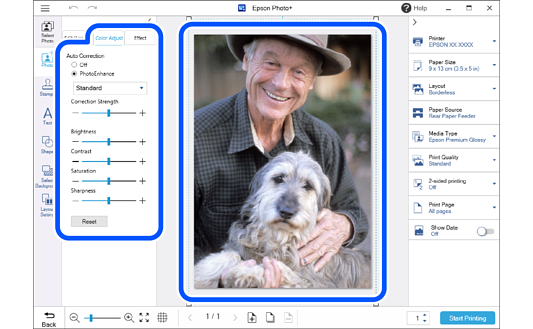
Click the photo to adjust its brightness and so on.
Select a photo and then click the Color Adjust tab to adjust its brightness, contrast, and so on.
Select a photo and then click the Effect tab to adjust the transparency and blurriness of the photo.
See the following for more details.
-
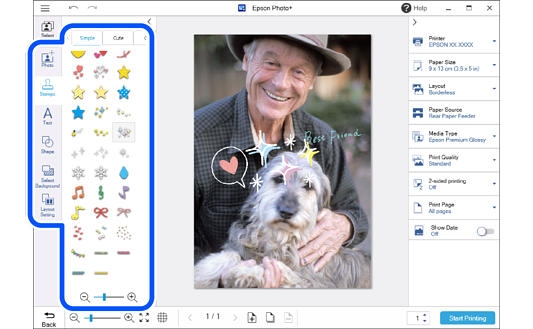
Add stamps, text, and so on.
See the following for more details.
-
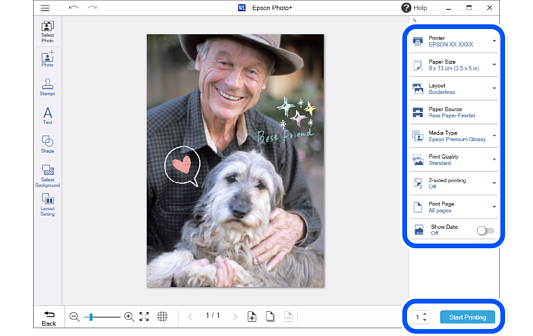
Make print settings, and then click Start Printing.
 Note:
Note:-
Click
 or
or  at the top of the settings area to hide the settings area.
-
See the "User's Guide" supplied with the printer for details on loading paper and making print settings.
-