Printing ID Cards From the Blank Pages
This feature is available only for specific models.
This section explains how to create the ID cards from the blank pages.
-
Select the printer, and then click ID Card.

-
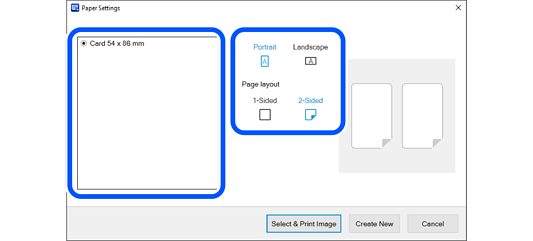
Select the orientation and the page layout.
-
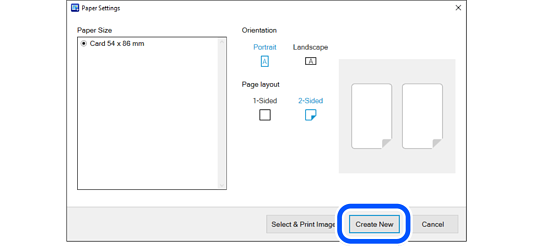
Select Create New.
-
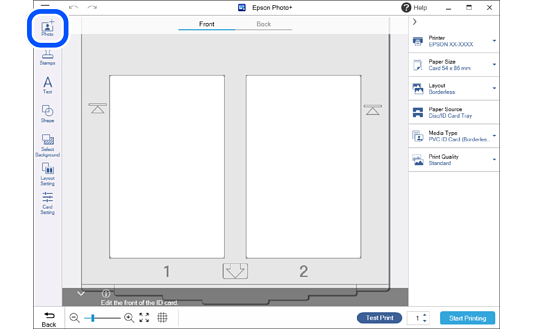
Click Photo, select the image, and then click Open.
-
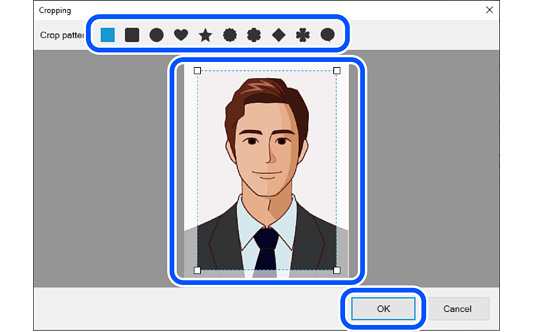
Drag
 to adjust the range and position you want to crop, and then click OK.
-
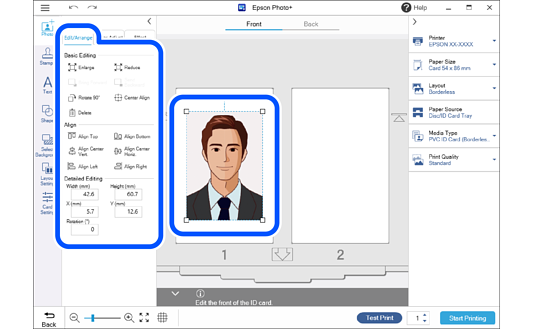
Click the image to adjust its position, size, and so on.
You can adjust the position by dragging the image.
Select the image and then select the Edit/Arrange tab to enlarge, reduce, rotate, and so on.
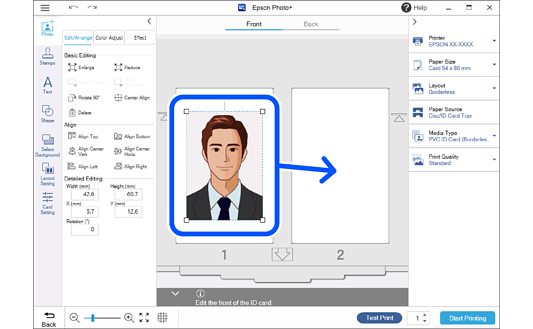
If you want to move the image, click on it, and then drag and drop it onto the other card.
 Note:
Note:-
If you only want to print one ID card, click Layout Setting and change the Set position to 1 only or 2 only.
-
 or
or  indicates the direction in which the ID card must be inserted into the printer.
-
-
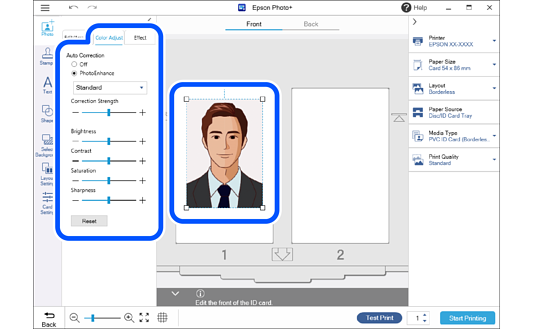
Click the image to adjust its brightness and so on.
Select the image and then select the Color Adjust tab to adjust the brightness, contrast, and so on.
Select the image and then select the Effect tab to adjust the transparency and blurriness.
See the following for more details.
-
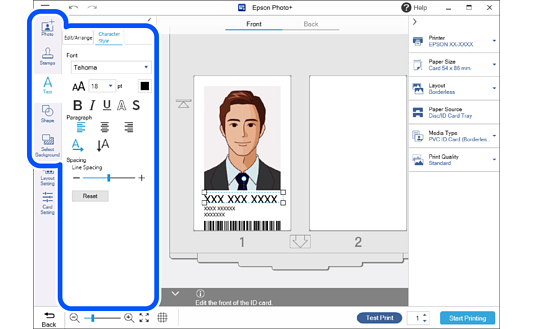
Add stamps, text, and so on.
See the following for more details.
 Note:
Note:When you select 2-Sided as the page layout, you can also edit the back of the card. Select Back at the top of the edit screen, and then add images, text, and so on.
-
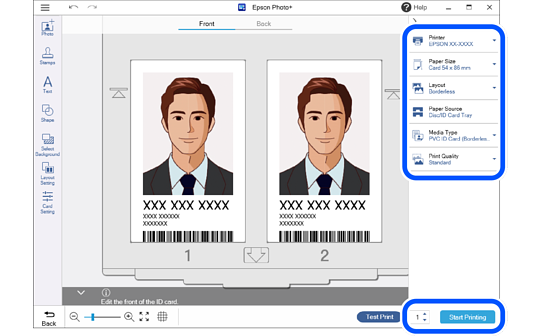
Make print settings, and then click Start Printing.
 Note:
Note:-
Click
 or
or  at the top of the settings area to hide the setting area.
-
When you select 2-Sided as the page layout, follow the on-screen instructions to print the front and the back in order.
-
See the "User's Guide" supplied with the printer for details on loading paper and making print settings.
-