Printing a Photo Index
-
Select the printer, and then click Other Photos.

-
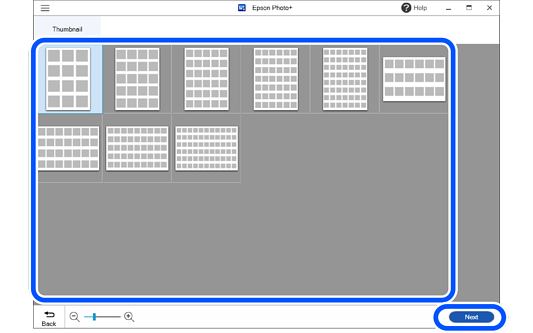
Select a frame, and then click Next.
-
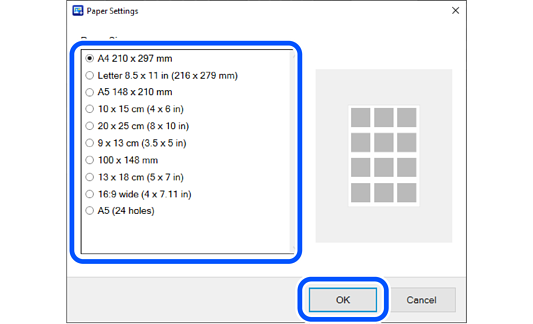
Select the paper size, and then click OK.
-
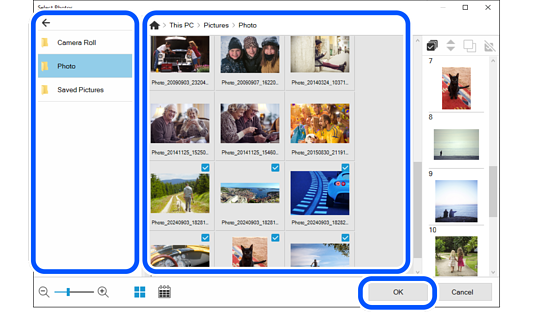
Select photos, and then click OK.
You can check the selected photos in the photo list on the right.
 Note:
Note:-
Click
 to rearrange the photos displayed in order of the shooting date.
To return to the list view, click
 .
.
-
Framed photos are arranged in the order of the photo list. Use the following buttons to edit the contents of the photo list.
 : Select all the photos in the photo list.
 : Change the order of the photos selected in the photo list.
 : Copy the photos selected in the photo list. You can place the same photo in multiple frames.
 : Deselect the photos selected in the photo list.
-
Click OK to reset the editing page to match the selected photo. If you reselect a photo after it has been edited, the page may be deleted.
-
-
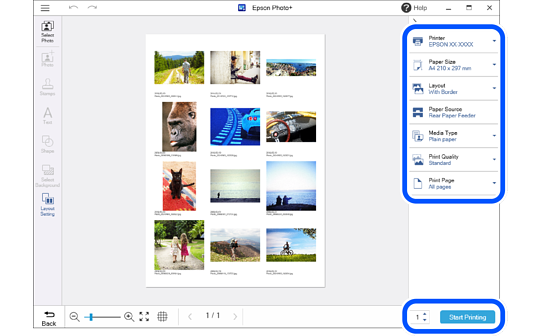
Make print settings, and then click Start Printing.
 Note:
Note:-
To replace photos, click Select Photos and repeat the process from step 5.
-
Click
 or
or  at the top of the settings area to hide the settings area.
-
See the "User's Guide" supplied with the printer for details on loading paper and making print settings.
-